Getting started
Install Quotera on your phone
Put Quotera on your Home screen. It opens in one tap like any app, full screen, and your phone can alert you when a client accepts or pays.
2 min read · 6 steps
Step 1
Android: open Chrome's menu
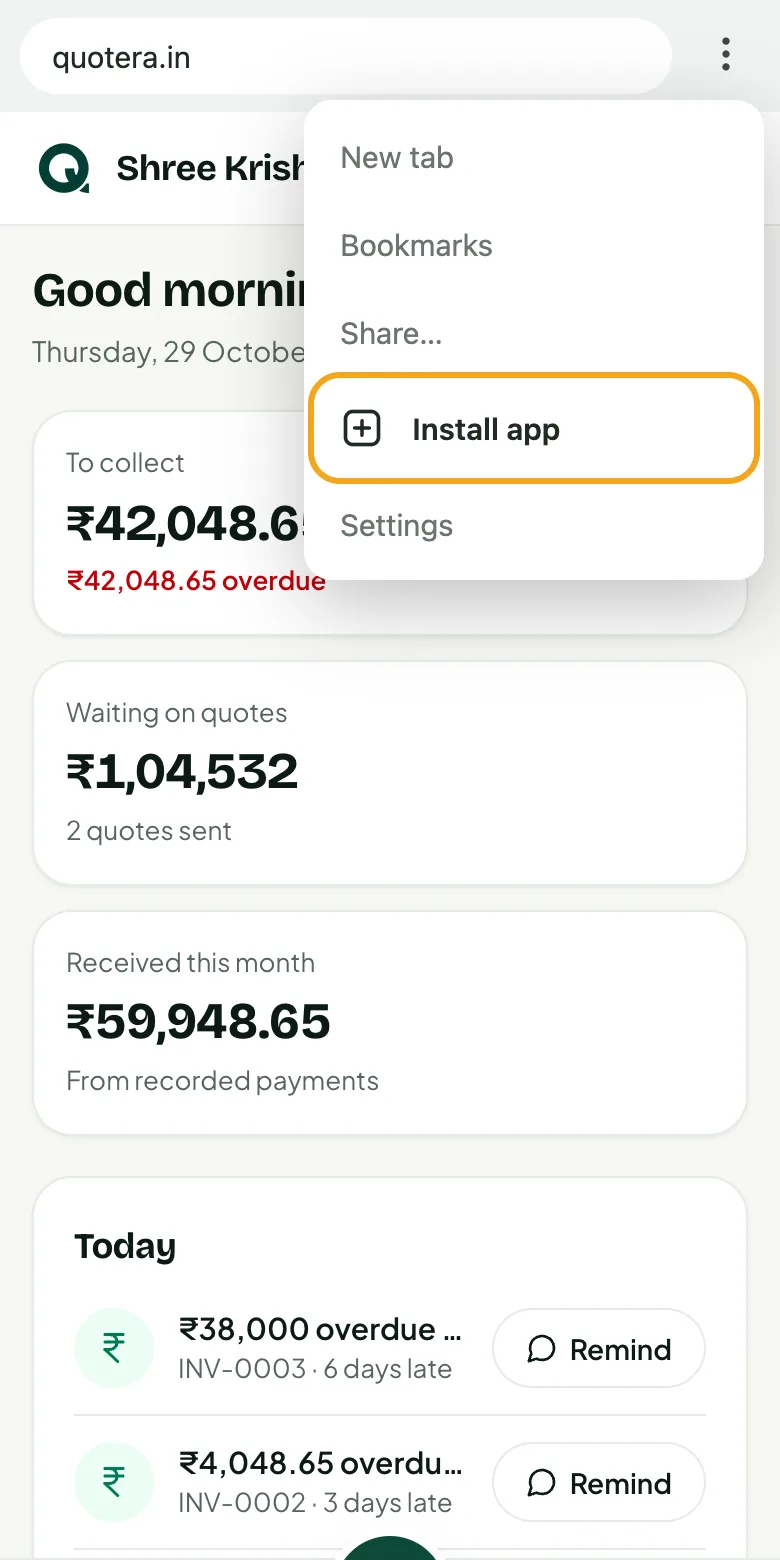
Open quotera.in in Chrome and sign in. Then tap the three dots at the top right.
- 1Open quotera.in in Chrome
- 2Tap “⋮” at the top right
Step 2
Android: tap Install
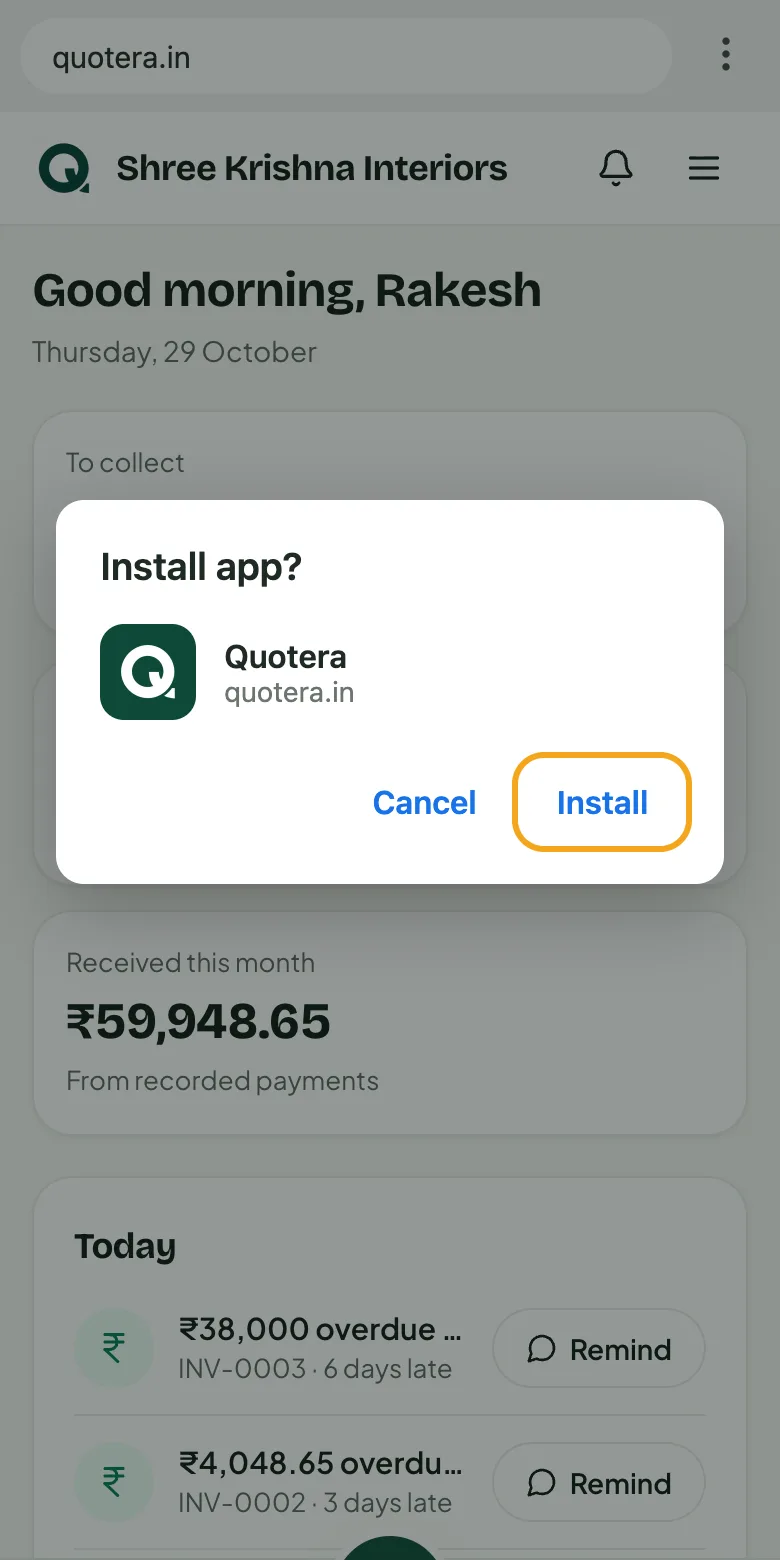
Tap “Install app” (some phones say “Add to Home screen”), then “Install”. Quotera now sits with your other apps.
- 1Tap “Install app” or “Add to Home screen”
- 2Tap “Install”
Tip: Chrome sometimes offers it on its own at the bottom of the screen. Tap “Install” there.
Step 3
iPhone: tap Share in Safari
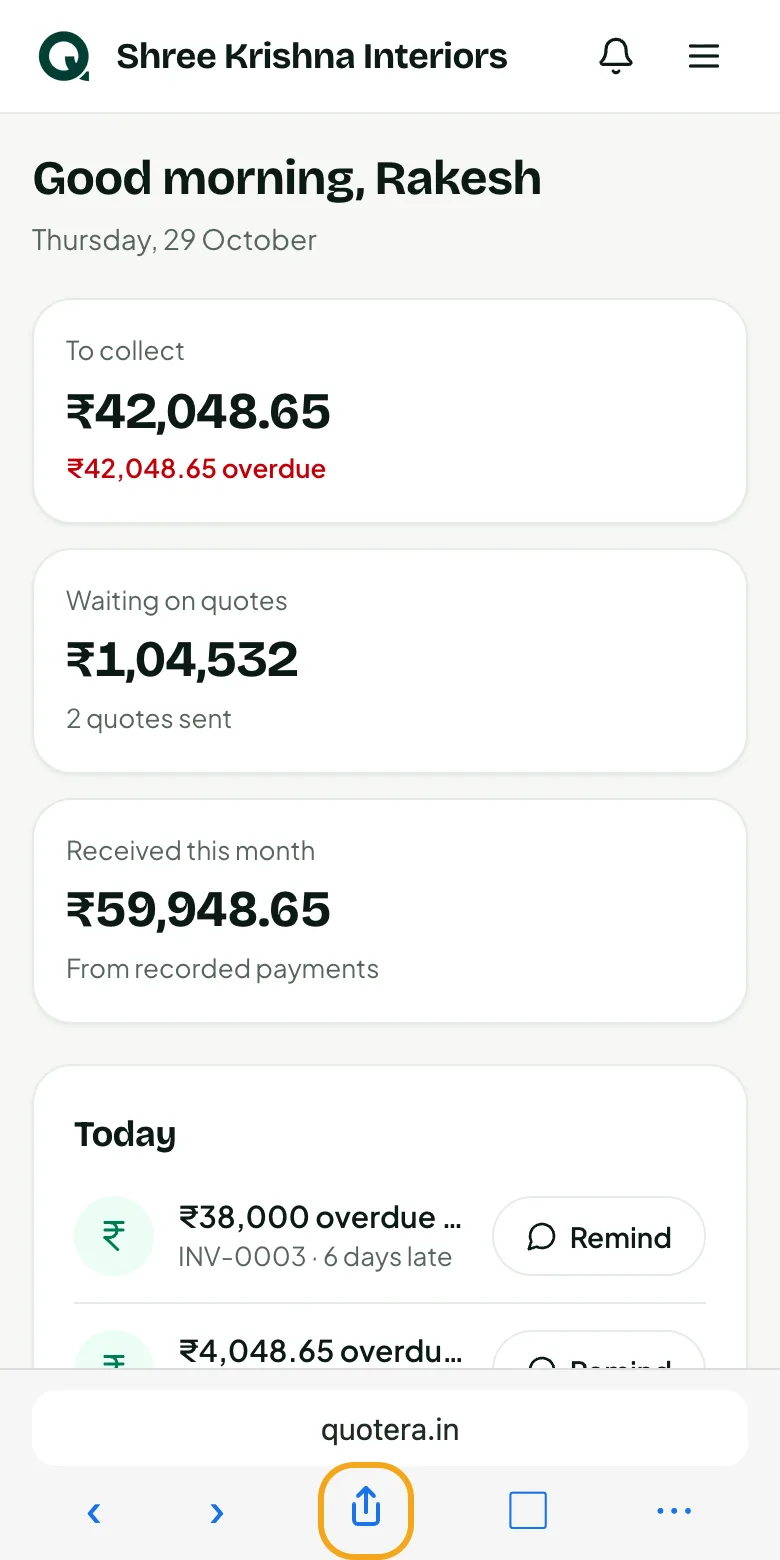
On an iPhone, use Safari. Open quotera.in, sign in, and tap the Share button at the bottom of the screen.
- 1Open quotera.in in Safari
- 2Tap the Share button (a square with an arrow)
Step 4
iPhone: Add to Home Screen
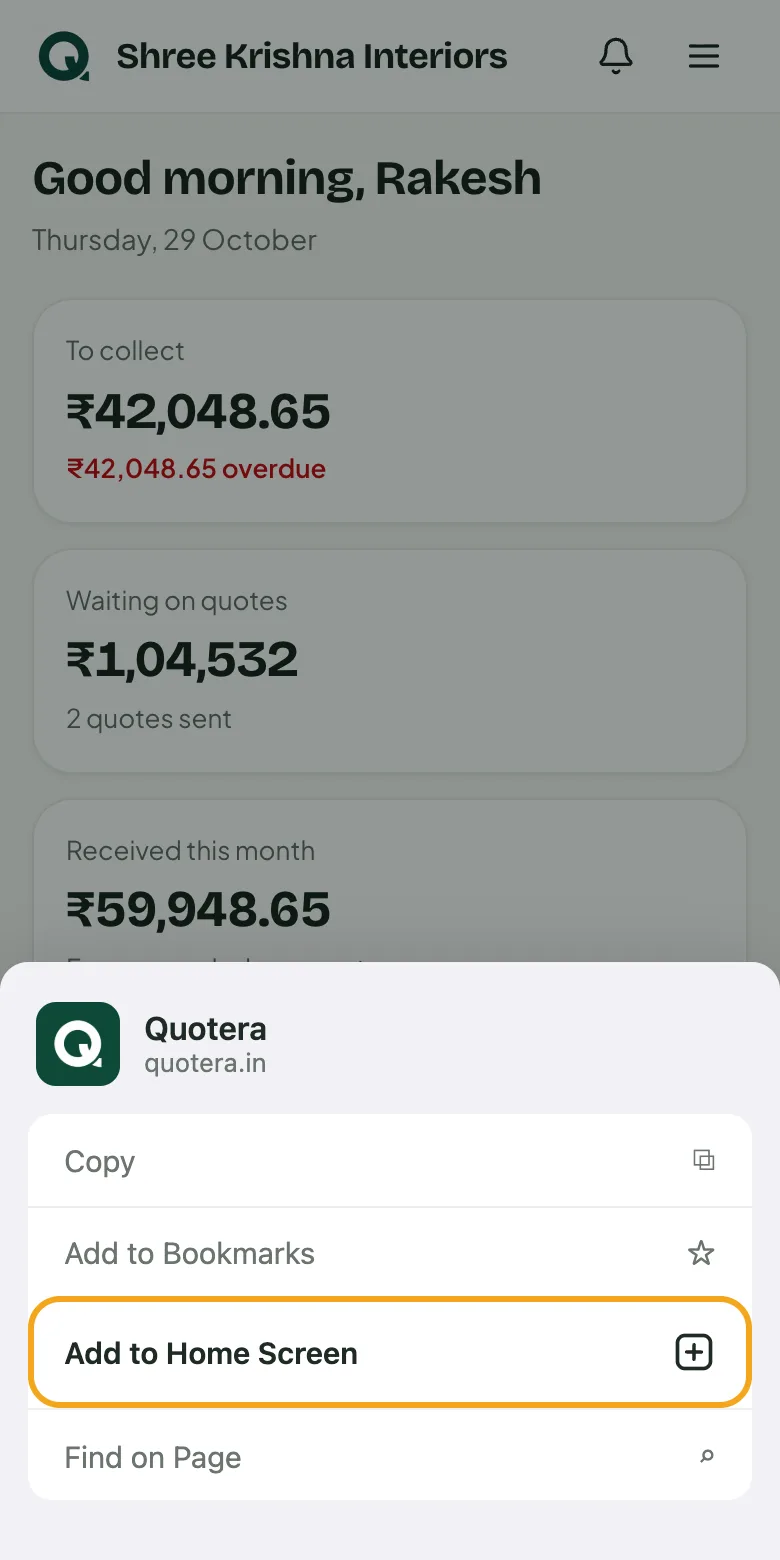
In the list that opens, scroll down and tap “Add to Home Screen”, then “Add” at the top right.
- 1Tap “Add to Home Screen”
- 2Tap “Add”
Step 5
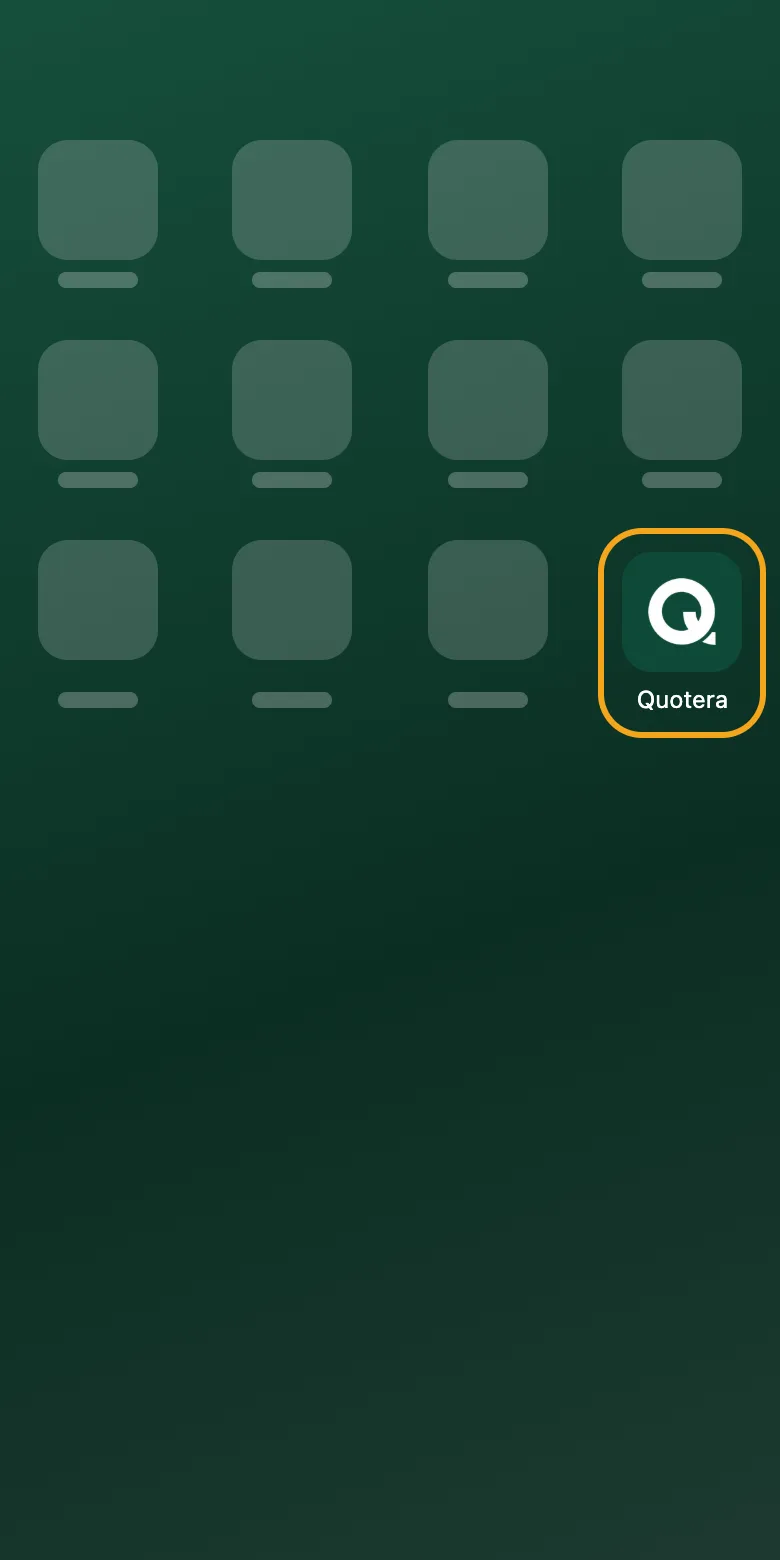
Open Quotera from your Home screen
Tap the Quotera icon. It opens full screen, straight to your Home, without the browser's address bar.
- 1Find the Quotera icon with your apps
- 2Tap it to open Quotera
Step 6
Turn on alerts
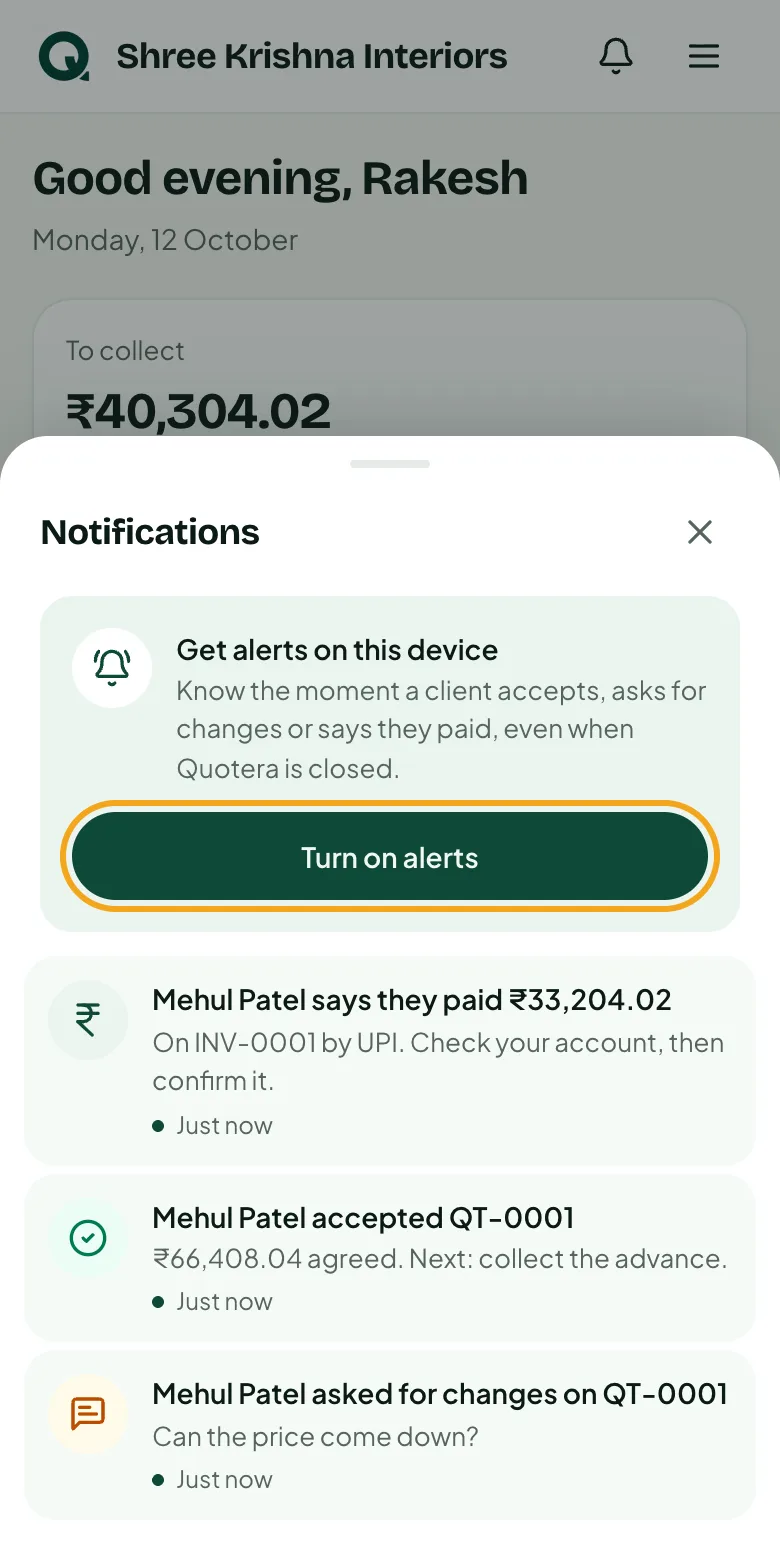
Tap the bell, then “Turn on alerts”, and allow it. Your phone now tells you when a client opens, accepts or pays, even with Quotera closed.
- 1Tap the bell at the top
- 2Tap “Turn on alerts”
- 3Tap “Allow” when the phone asks
Tip: On an iPhone, alerts work only when Quotera is opened from the Home screen.
Common questions
Do I need the Play Store or App Store?
No. Quotera installs from the browser in a few seconds and always opens the latest version, so there's nothing to update.
Will I have to sign in again?
On Android, no. On an iPhone the Home screen app keeps its own sign-in, so you sign in once more there.
How do I remove it?
Like any app: press and hold the icon, then remove it. Your quotations, invoices and data stay safe in your Quotera account.
I don't see “Install app”.
Look for “Add to Home screen” in the same menu. On an iPhone it's only in Safari's Share list.