Quotations
Proforma invoice for the advance
Some clients, accounts teams and banks need a proforma invoice before they pay an advance. Any open or accepted quotation downloads as one, with a UPI QR for the advance.
2 min read · 2 steps
Step 1
Download it from the quotation
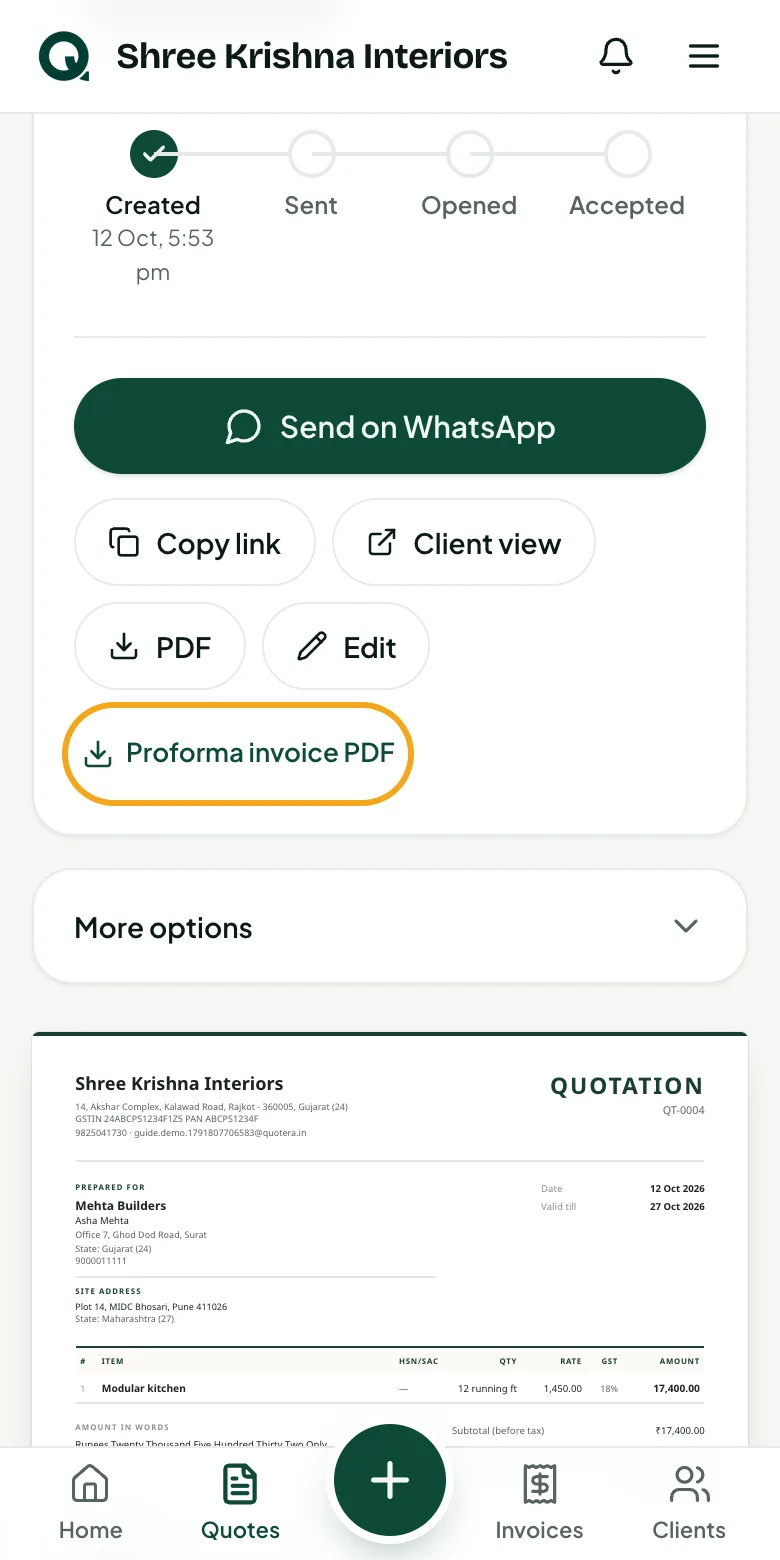
Open the quotation and tap the proforma button under the link buttons. It's the same quotation as a bill before the work: numbered PI-0007, with “Bill to” and a QR to pay the first payment step.
- 1Open the quotation
- 2Tap “Proforma invoice PDF”
- 3Send the PDF to the client on WhatsApp or email
Tip: A proforma isn't a tax invoice and doesn't go in your GST report. When the work is done, tap “Make invoice” for the real one.
Step 2
The client can download it too
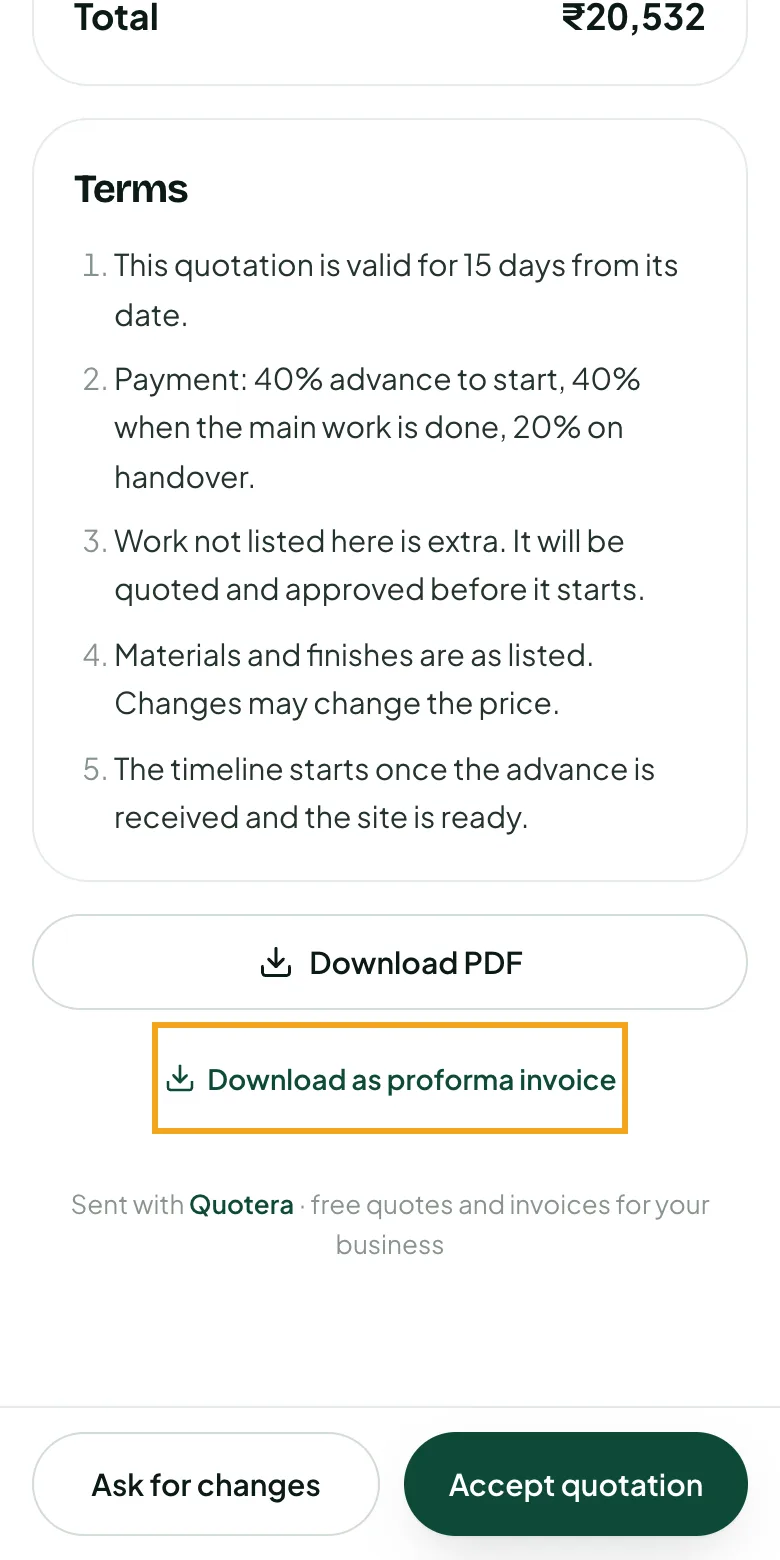
On the client's link, under “Download PDF”, the client can download it as a proforma invoice themselves.
- 1The client taps “Download as proforma invoice”
Common questions
Why isn't the proforma button showing?
A declined or expired quotation has no proforma. Make a new quotation, or extend the old one.
Does a proforma use an invoice number?
No. It takes the quotation's number with PI- in front (PI-0007), so your invoice numbers have no gaps.